Share Devices Across Locations and Collaborate Without Distance
Temporary device sharing that is secure and convenient
No shared passwords and no device reconfiguration
Share a Device Securely Without Sharing Credentials
HomiPlay's Share Machine feature lets you securely share your Windows, macOS, Linux, or other HomiPlay device with another HomiPlay user. There is no need to disclose your account password or reconfigure the device.
The owner can set an expiration time for the share. Access automatically expires when time runs out and can also be revoked manually at any time, making it ideal for temporary collaboration, remote support, and device lending.
Key Features
Share with a specific person: Enter the email address associated with the recipient's HomiPlay account to share the device.
Set an expiration time: Choose how long access remains available, and HomiPlay revokes it automatically when time runs out.
Stop sharing at any time: Revoke access immediately without waiting for the scheduled expiration.
Use the device's full feature set: The recipient can use Remote Desktop, File Drop, and other supported features as if the device were their own.
No VPN or static IP: Connect directly through HomiPlay's secure virtual network.
When to Use It
Borrow a company computer temporarily to handle work
Share a device with a colleague for remote collaboration
Give IT staff short-term access for remote maintenance
Share a home computer with a family member
Grant temporary device access for the duration of a project
How It Works
Configure Share Machine
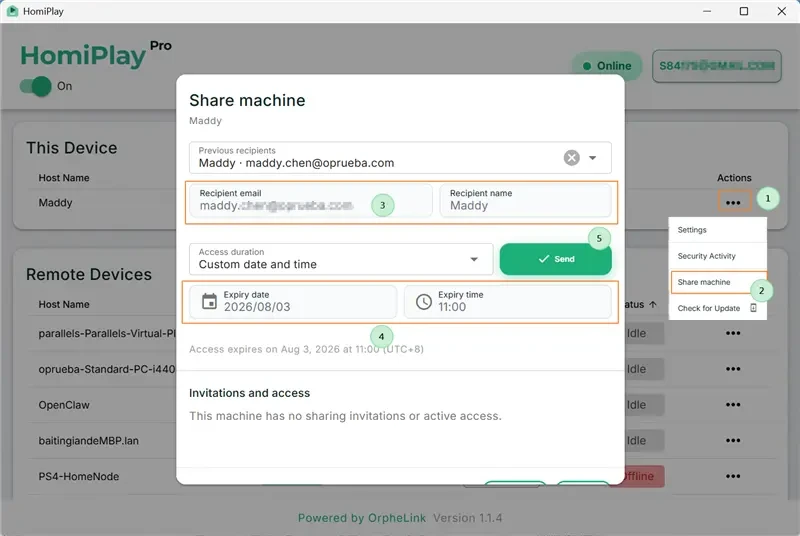
On the device you want to share, select Share Machine, enter the recipient's HomiPlay account email, set an expiration time, and send the invitation.
Accept the Shared Device Invitation
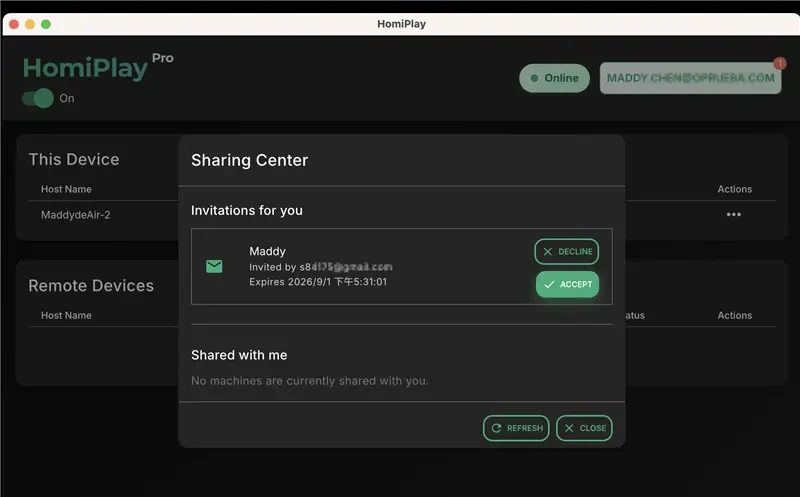
After signing in to their HomiPlay account, the recipient sees a sharing notification. Select Accept to add the device.
Configure Access Permissions
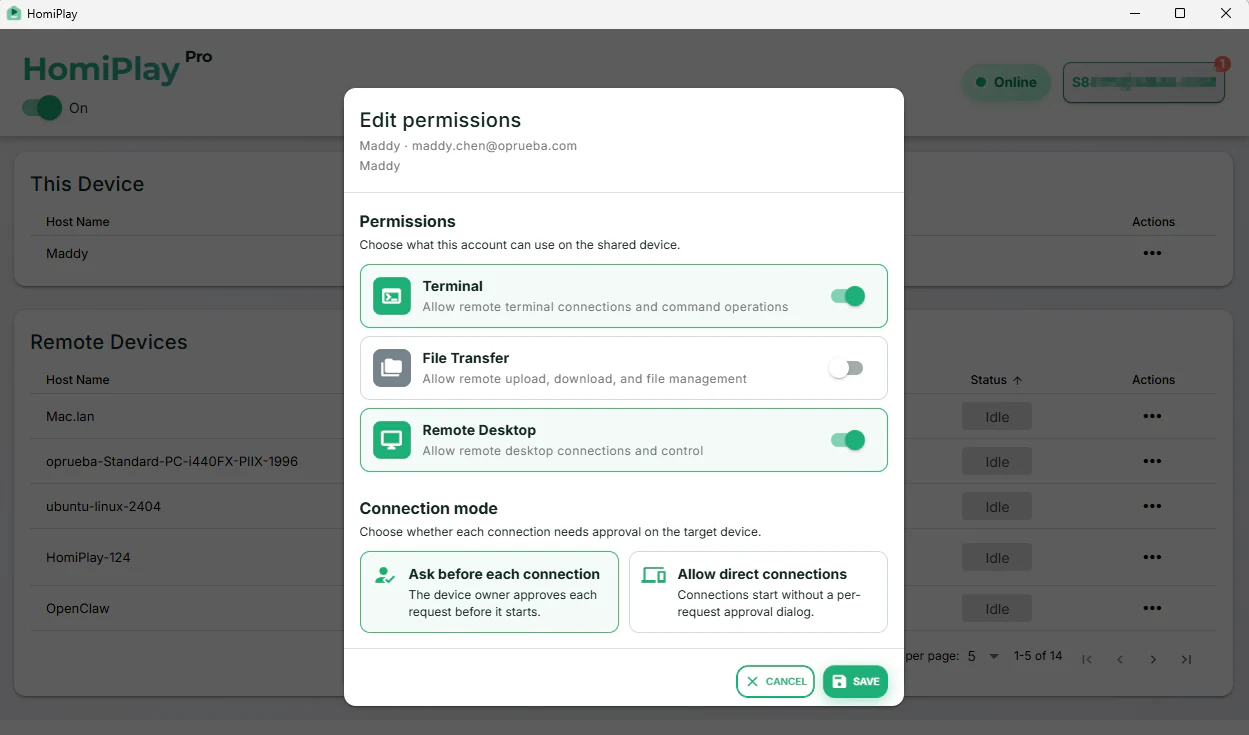
Choose which features the recipient can use: Terminal allows command-line operations; File Drop allows file uploads, downloads, and management; Remote Desktop allows remote screen control. You can also select a connection approval mode. Attended Mode requires someone at the device to approve each connection, making it suitable for temporary assistance and remote support. Unattended Mode connects without confirmation on the device, making it suitable for personal remote work, home-computer access, and server administration.
Use the Shared Device
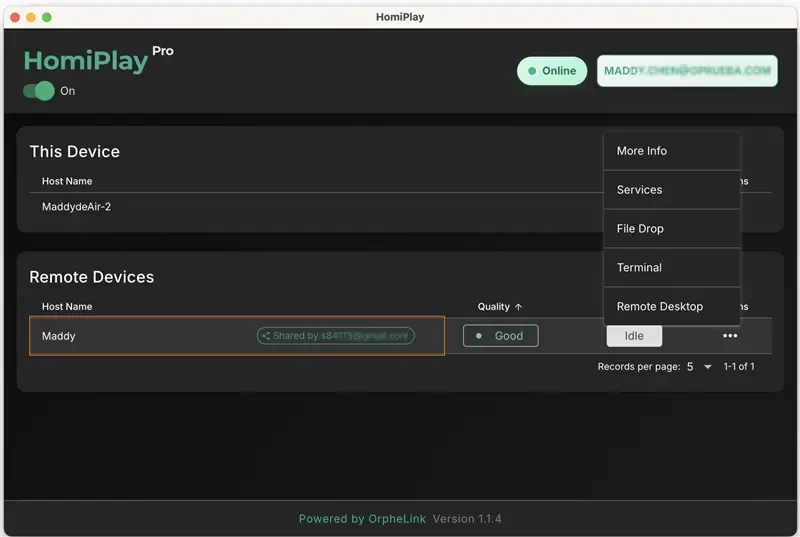
After signing in, the recipient can find the shared device in their device list and use Remote Desktop, File Drop, Terminal, and any other HomiPlay features supported by that device. When the sharing period ends, the device is automatically removed from the list. The owner can also revoke access at any time.
Other Use Cases
Play your PS5 remotely just like you're at home.
Connect faster, play without lag, and enjoy clear visuals.
Learn MoreAccess Your Home OpenClaw AI Workspace Remotely
Securely connect back to your home OpenClaw, local LLMs, and AI agents with no VPN, fixed IP, or port forwarding.
Learn MoreCross the screen boundary, seamlessly continue your unfinished work
Extend your office workstation's performance directly to the screen in front of you. Without changing any of your habits, elegantly and perfectly merge your workflows across locations in a full desktop environment.
Learn MorePut your entire PC in your pocket, handle important tasks anytime with a tap
A remote experience redefined for touch screens. Break device boundaries and turn your phone into your exclusive portable window. Check progress, reply to messages, and master remote control with one hand, anytime, anywhere.
Learn MoreSay goodbye to tedious transfer processes, cross-screen file management should be this intuitive
Integrate local and remote folders with a familiar dual-pane management interface. Whether it's large project files or batch folders, easily complete synchronization through a blazing-fast and secure channel.
Learn MoreForgot your cable? Bridge your phone and PC data in a second
Your cloud briefcase in your pocket. Instantly send recorded media from your phone to your PC for editing, or download presentations from your remote PC to your phone for review. Data flows without barriers.
Learn MoreStay safe on public WiFi with your own VPN.
Route your connection back home so your data is no longer exposed.
Learn MoreAccess Your Home NAS via HomiPlay
Securely and quickly access files, photos, and multimedia on your home NAS from anywhere.
Learn More