Access Your Home OpenClaw AI Workspace Remotely
Sign into the same HomiPlay account on every device and bring your AI workspace with you.
Access OpenClaw and your AI resources as if everything were still on the same private network.
Overview
More people are running OpenClaw, local LLMs, and AI agents on their home computers to create a personal AI workspace.
The challenge is that these systems are usually only accessible from inside the home network. Remote access often means exposing services to the internet or setting up a traditional VPN just to connect from outside.
That creates new problems. Public-facing services can become easy targets for scans and attacks, while VPN setups often require fixed IPs, firewall rules, and additional network maintenance that most users do not want to deal with.
HomiPlay makes this much simpler. By signing into the same HomiPlay account across devices, you can create a secure direct connection that lets you access your home OpenClaw and AI resources remotely as if your devices were still on the same private network.
🔐 Private AI Tunnel: Secure access to your home AI resources.
🔗 P2P Direct Connection: Fewer relays, more stable connectivity.
🧩 Simple Setup: No VPN, fixed IP, or port forwarding required.
Benefits
Access your home OpenClaw and local LLMs remotely
Reduce the risks of exposing AI services publicly
Skip complex VPN and network configuration
Get a smoother, more stable remote AI workflow experience
Setup Steps
Get Your HomiPlay IP
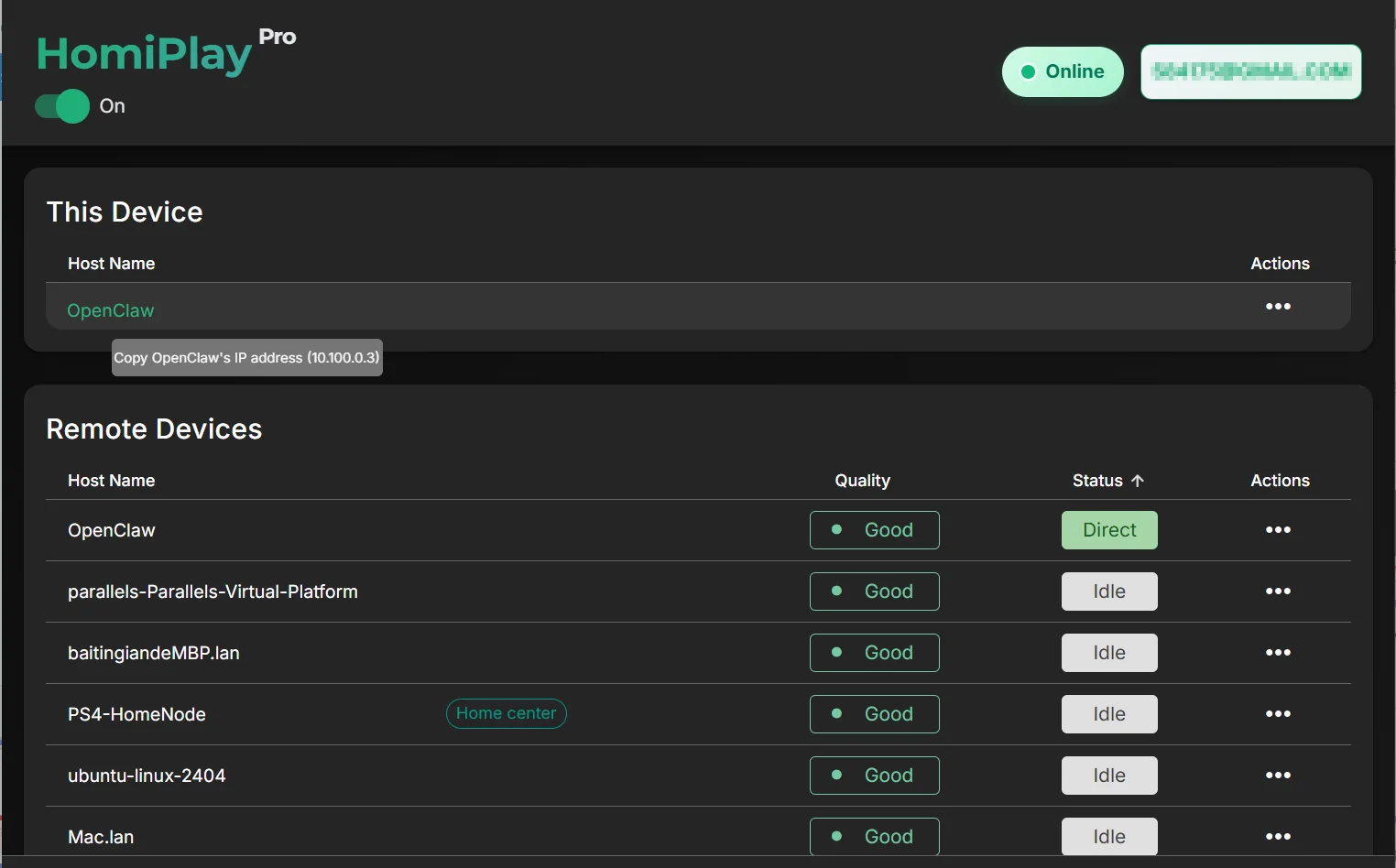
On the OpenClaw host device, open the HomiPlay interface and find the “This Device” section. You’ll see the IP address assigned to that device by HomiPlay (this guide uses 10.100.0.3 as an example).
Configure the OpenClaw Gateway
Next, we need to prepare OpenClaw for remote access and set a secure access token. Open the OpenClaw configuration file: ~/.openclaw/openclaw.json. In the gateway section, add your access token and allow connections from your HomiPlay address (for example: https://10.100.0.3:8789).
Enable Canvas Host
Make sure the web interface is enabled. In the same configuration file, locate the canvasHost section and confirm it is enabled: "enabled": true.
Configure Caddy
Now configure Caddy to securely forward requests to OpenClaw. Edit the Caddy configuration file: /etc/caddy/Caddyfile. Add your HomiPlay address (for example: https://10.100.0.3:8789) and forward traffic to 127.0.0.1:18789. This is the internal OpenClaw gateway endpoint.
Reload Caddy
After updating the configuration, reload Caddy so the changes take effect. Example: sudo systemctl reload caddy.
Open the OpenClaw Service in HomiPlay
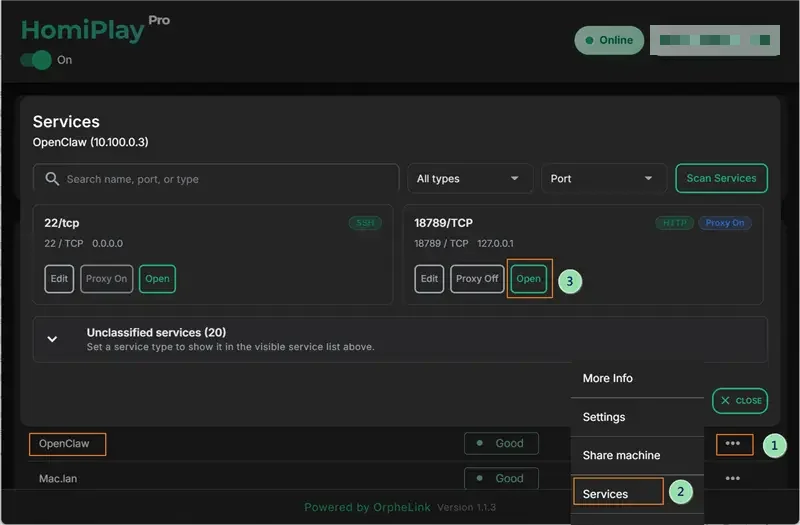
In HomiPlay, select the device where OpenClaw is deployed and open the "Services" feature. It automatically finds the port that OpenClaw uses; click the "Open" button on that service to launch the OpenClaw page directly.
You're Connected to OpenClaw
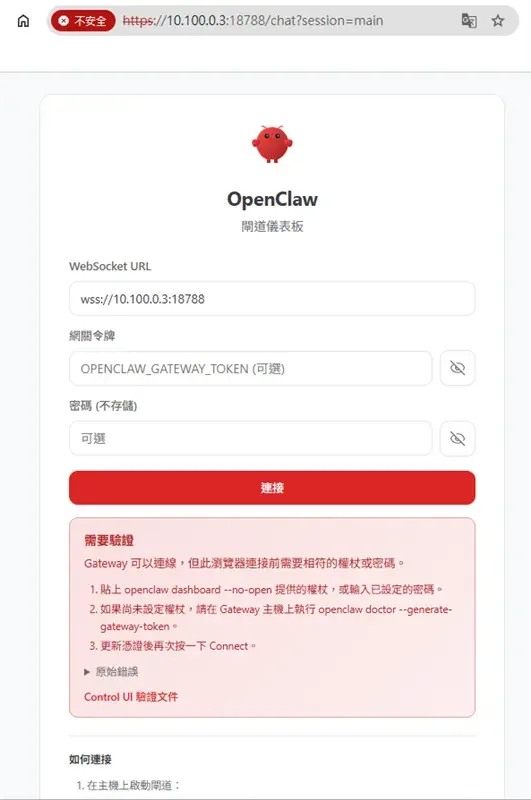
Once the service opens, the OpenClaw interface appears, confirming the connection. You can now use your OpenClaw AI workspace remotely, anytime and anywhere, just as if you were at home.
Other Use Cases
Share Devices Across Locations and Collaborate Without Distance
Temporarily share a Windows, macOS, Linux, or other HomiPlay device with a specific user without handing over account credentials. Access expires automatically when the sharing period ends.
Learn MorePlay your PS5 remotely just like you're at home.
Connect faster, play without lag, and enjoy clear visuals.
Learn MoreCross the screen boundary, seamlessly continue your unfinished work
Extend your office workstation's performance directly to the screen in front of you. Without changing any of your habits, elegantly and perfectly merge your workflows across locations in a full desktop environment.
Learn MorePut your entire PC in your pocket, handle important tasks anytime with a tap
A remote experience redefined for touch screens. Break device boundaries and turn your phone into your exclusive portable window. Check progress, reply to messages, and master remote control with one hand, anytime, anywhere.
Learn MoreSay goodbye to tedious transfer processes, cross-screen file management should be this intuitive
Integrate local and remote folders with a familiar dual-pane management interface. Whether it's large project files or batch folders, easily complete synchronization through a blazing-fast and secure channel.
Learn MoreForgot your cable? Bridge your phone and PC data in a second
Your cloud briefcase in your pocket. Instantly send recorded media from your phone to your PC for editing, or download presentations from your remote PC to your phone for review. Data flows without barriers.
Learn MoreStay safe on public WiFi with your own VPN.
Route your connection back home so your data is no longer exposed.
Learn MoreAccess Your Home NAS via HomiPlay
Securely and quickly access files, photos, and multimedia on your home NAS from anywhere.
Learn More