
Help Center
Learn how to install, register, and use HomiPlay features
Installation Guide
Follow these steps to easily install HomiPlay for your operating system
Step 1: Download the Windows Installer
Go to the official download page and download the HomiPlay installer (.msi) for Windows (supports x86 and ARM architectures).
Step 2: Run the Installer
Open the downloaded file and click "Next" following the on-screen instructions. If prompted by User Account Control (UAC), click "Yes".
Step 3: Launch and Sign In
Once installed, launch HomiPlay from your Start Menu or desktop shortcut. Sign in or register to get started.
Account Registration
Create your HomiPlay account and start experiencing remote access
Step 1: Open Registration Page
Launch the HomiPlay app and click "Create a new account" at the bottom of the interface.
Step 2: Fill in Account Details
Enter a valid email address. The system will send a verification email and provide a default password.
Step 3: Log In and Change Password
Use the default password provided in the email to log in. You can find the option to change your password in the top right menu.
Home Center Setup Guide
Configure your device as a Home Center to route your network traffic securely
Step 1: Open Device Settings
In the device list, find the device you want to configure, click its settings icon on the right, and choose "Settings" from the menu to open the device settings.
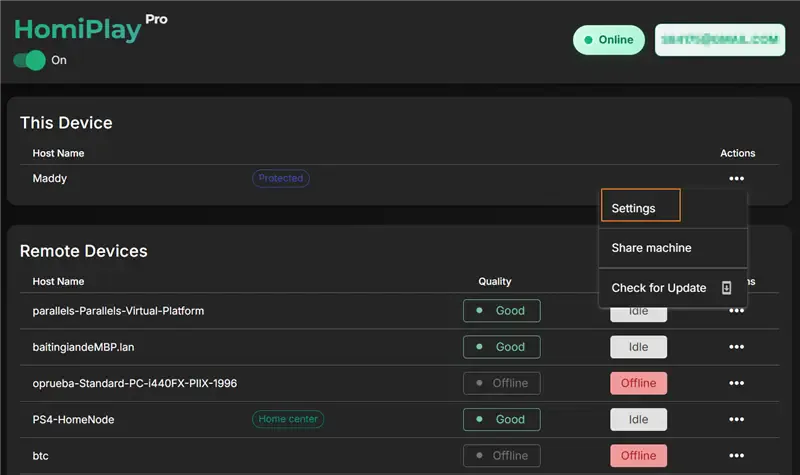
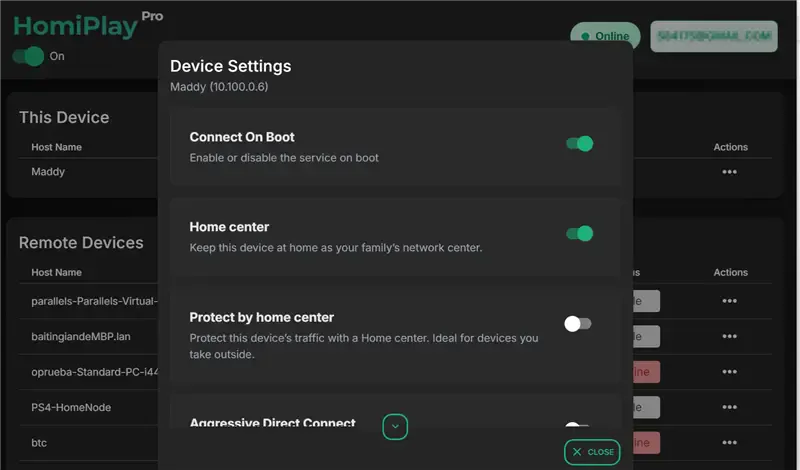
Step 2: Enable the Home Center Feature
In the settings of the device you want to use as a Home Center, turn on the "Home Center" switch. Once enabled, that device will start providing the Home Center function, and you will see a Home Center label in the device list to confirm it was enabled successfully.
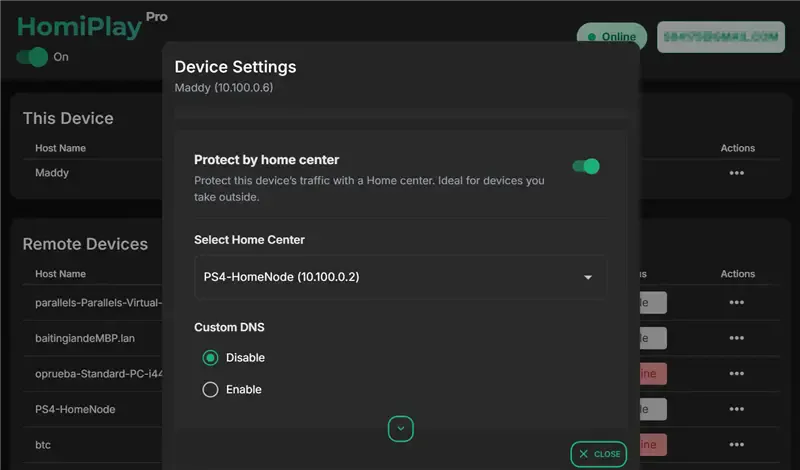
Step 3: Configure Protect by Home Center
In the settings of the device you want to route through Home Center, turn on the "Protect by Home Center" switch and select which Home Center to use. After saving, you will see a Protect by Home Center label in the device list, confirming the setup was completed successfully.
Pro Trial Activation
Sign in and your 7-day free trial starts automatically — experience all premium features
Step 1: Download and Sign In
Download HomiPlay and complete your account registration and sign-in.
Step 2: Get Your 7-Day Pro Trial Automatically
Once you sign in, the full 7-day Pro plan is activated for you automatically — no manual request and no credit card required.
Step 3: Check Your Trial Status and Expiry
Click "Account & Plan" in the top right corner of the application to check the days remaining and the expiry date of your Pro trial at any time.
Step 4: After the Trial & Daily Experience
When the 7-day trial ends, your account automatically returns to the Free plan. After that, eligible accounts can start one free 60-minute session of full Pro performance every day.